How to Compare Robot Vacuum Map Editing Features

Figuring out how to compare a robot vacuum's map editing features is tricky because specs rarely tell the whole story. You might see "multi-map support" listed, but that doesn't mean the interface works smoothly on your phone. The real difference lies in visual feedback and touch precision.
Our research indicates that poor UI design causes more frustration than weak suction power for many users. As of 2026, most premium models offer robust tools, yet execution varies wildly. We’ll break down exactly what to look for on the screen so you don’t get stuck with a clumsy app.
Quick Answer
To compare map editing, test pinch-to-zoom smoothness first. Check if zones snap accurately to walls. Verify multi-floor switching speed.
Look for lag when drawing boundaries. Ensure the app saves changes without crashing. These visual cues reveal true usability better than spec sheets.
Why You Can’t Judge Map Editing by Specs Alone
Specs list capabilities, not experiences. A datasheet says "supports 5 maps." It doesn’t say how long it takes to switch between them. Or if the transition freezes your app for ten seconds.
We’ve seen high-end models fail basic usability tests despite impressive hardware. The robot’s LiDAR sensor might be perfect. But if the companion app renders the map poorly, you’re stuck guessing.
Visual clarity determines whether you trust the device.
Think of it like a car dashboard. GPS accuracy matters, but font size does too. If you can’t read the street name while driving, the tech is useless.
Same goes for floor plans. Tiny icons or blurry lines make editing a chore.
Focus on the interaction loop. Does the map update in real-time? Do buttons feel responsive?
These qualitative factors define daily satisfaction. Ignore them, and you risk buying a headache.
The Visual Friction Test: How to Spot a Clunky Interface
Visual friction occurs when your finger movement doesn’t match the screen response. This lag breaks immersion and causes errors. To spot it, watch how quickly the zone box follows your thumb.
A good interface feels magnetic. Boundaries should snap to detected walls automatically. If you have to drag perfectly straight lines by hand, the UX is flawed.
Precision tools reduce mental load significantly.
Look for these specific red flags during setup:
- Delayed Rendering: The map loads slowly after opening the app.
- Jittery Cursors: Your finger moves, but the selection wobbles.
- Hidden Controls: Essential edit buttons are buried in sub-menus.
- No Undo Option: Mistakes require restarting the entire mapping process.
Aggregate reviews report that users abandon complex apps within weeks. Simplicity wins here. You want immediate feedback.
Tap a room, rename it instantly. Draw a no-go zone, see it appear clearly.
If the app requires multiple confirmations to save one change, it’s inefficient. Streamlined workflows respect your time. Test this before committing to a brand.
Download the trial version if available.
LiDAR Stability vs. vSLAM Detail: Which Map Holds Up Better?
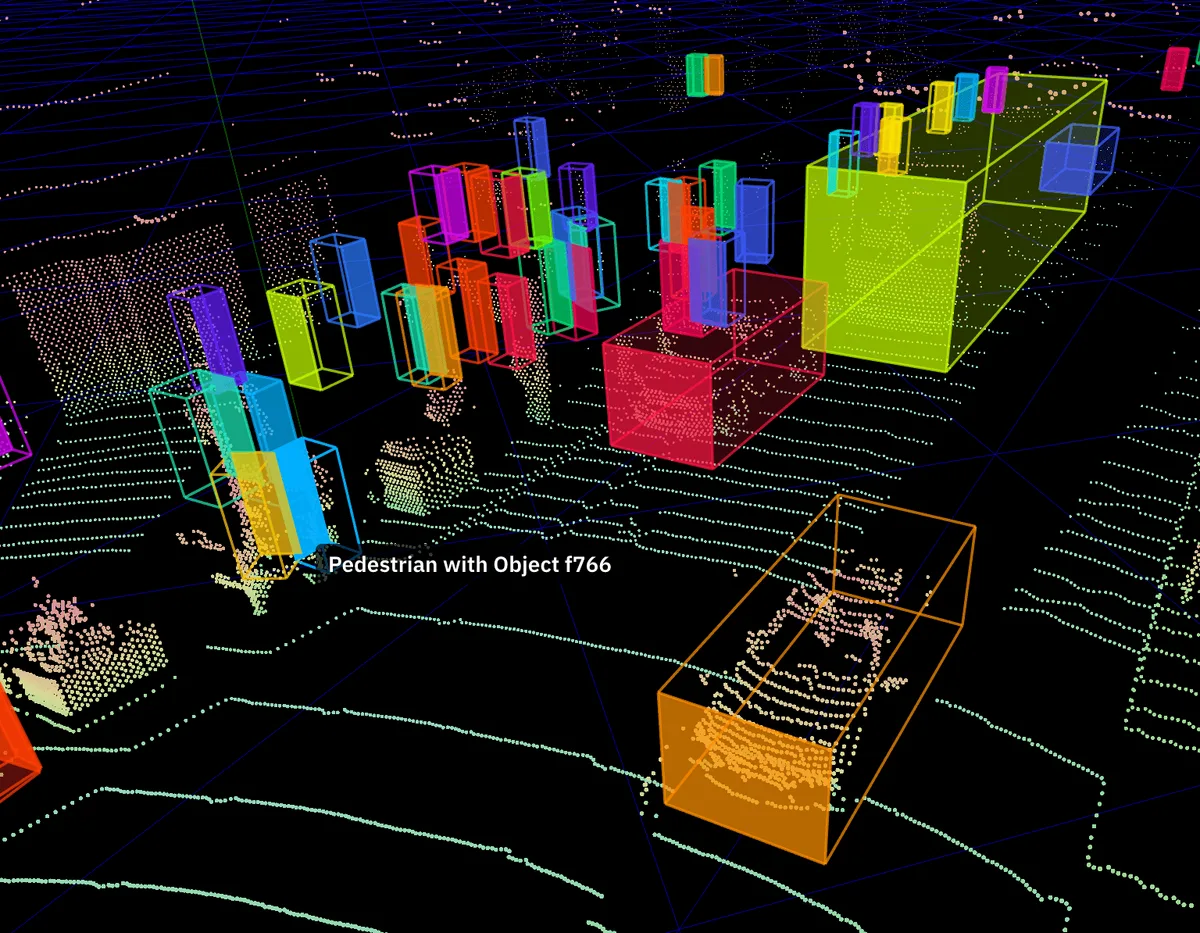
LiDAR (Light Detection and Ranging) creates geometrically accurate maps. It uses laser pulses to measure distance. This results in sharp, stable edges that rarely drift over time.
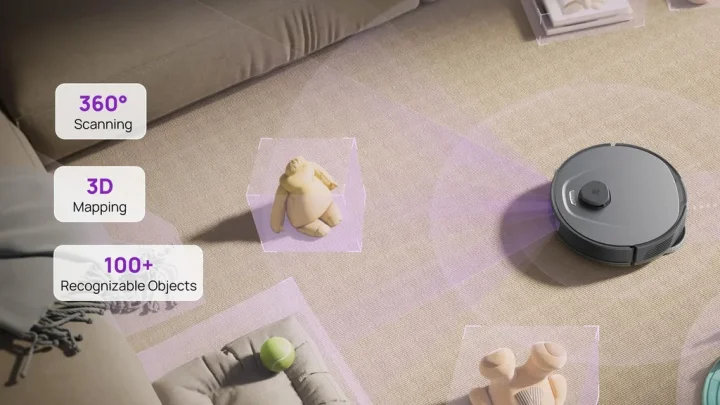
vSLAM (Visual Simultaneous Localization and Mapping) uses cameras. It captures rich texture details. You might see rugs or furniture legs clearly.
However, lighting changes can confuse the algorithm.
Here is how they differ in editing scenarios:
| Feature | LiDAR SLAM | vSLAM (Camera-Based) |
|---|---|---|
| Edge Precision | High; snaps cleanly to walls | Variable; may blur at corners |
| Lighting Sensitivity | None; works in total darkness | High; struggles in dim rooms |
| Object Recognition | Limited; sees shapes only | Strong; identifies cables/shoes |
| Map Drift | Minimal over months | Higher risk in cluttered spaces |
For map editing, stability is king. LiDAR maps stay consistent. You draw a zone once, and it remains valid. vSLAM maps might shift slightly as the robot learns new obstacles.
This means you may need to redraw boundaries frequently with camera-based systems. That adds maintenance overhead. If your home has dark hallways or varied lighting, LiDAR is safer.
Choose based on your environment’s consistency.
Step-by-Step: Stress-Testing Zone Drawing and Room Splitting
Don’t just look at the default map. Actively manipulate it. Start by splitting a large open area into two distinct rooms.
Watch how the software handles the boundary line.
Does it suggest a logical split point? Or do you have to guess? Good algorithms detect doorways or rug edges.
They propose splits automatically. Bad ones leave you with arbitrary choices.
Next, try moving furniture virtually. Delete an object icon from the map. See if the cleaning path adjusts accordingly.
Some apps ignore deleted items until the next full scan. Others update instantly. Instant updates show superior integration.
Then, create a custom no-go zone. Draw a polygon around a pet bowl. Zoom in close.
Can you place vertices precisely? If the grid is too coarse, you’ll block unnecessary floor space. Fine-grained control prevents wasted battery.
Finally, save and exit. Reopen the app immediately. Did your edits persist?
Sometimes cloud sync delays erase local changes. Verify data integrity before trusting the system. This simple check reveals backend reliability.
Common Visual Failures That Ruin Your Cleaning Routine
Ghost walls are a frequent issue. These appear when shadows trick vSLAM cameras. The robot thinks a dark corner is a solid barrier.
You end up with unusable map sections.
Drift error worsens over time. The digital map slowly misaligns with reality. A five-foot sofa might render as six feet wide.
Eventually, your saved zones miss their targets entirely. Regular recalibration becomes mandatory.
App crashes during editing are catastrophic. Losing thirty minutes of work due to a bug is infuriating. Manufacturer specifications indicate some older firmware versions lack auto-save features.
Always check recent patch notes for stability fixes.
Poor contrast makes maps unreadable. Light gray lines on white backgrounds vanish. You can’t distinguish cleaned areas from dirty ones.
Accessibility matters. Look for customizable color themes or high-contrast modes.
These failures aren’t just annoyances. They lead to incomplete cleaning. Users often blame the robot, not the interface.
Understanding these visual pitfalls helps you troubleshoot faster. Keep an eye out for community forums discussing specific app bugs.

Real-World Scenarios: Open Concepts, Pet Zones, and Multi-Floor Swaps
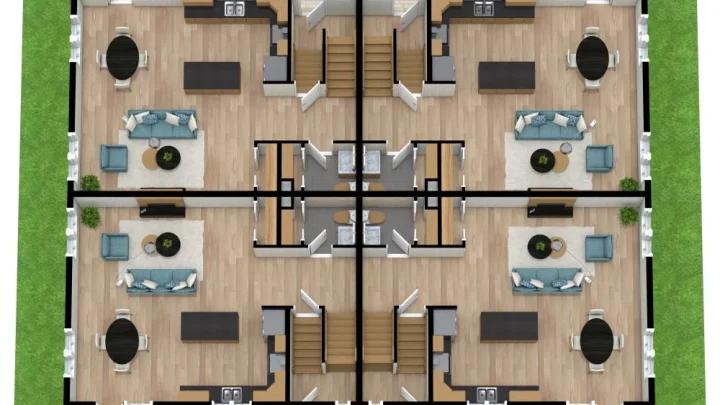
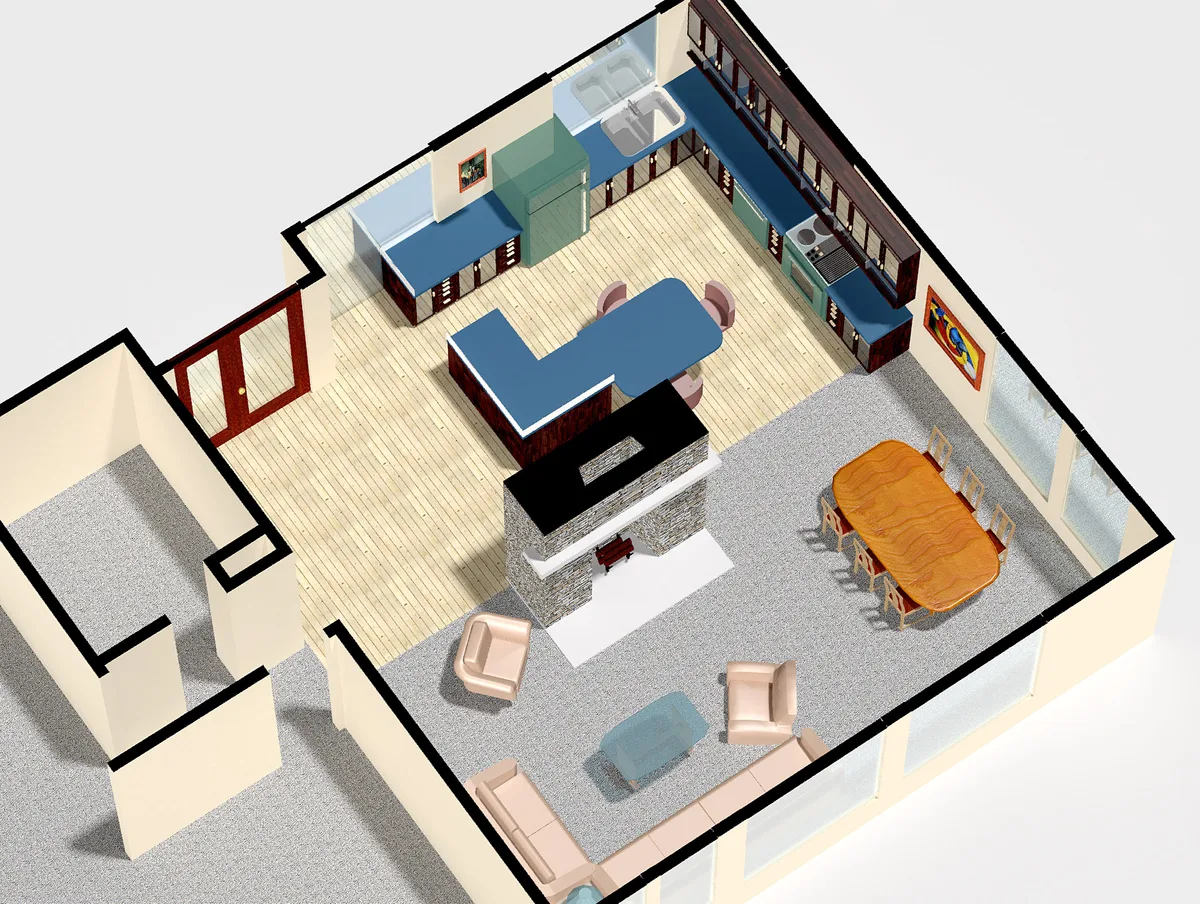
Open-plan living areas expose weak segmentation tools. You need to split a single large rectangle into distinct kitchen, dining, and lounge zones. If the app forces you to draw jagged lines manually, expect frustration.
Good software detects natural boundaries like rug edges or island counters.
Pet owners face different challenges. Food bowls and litter boxes require precise no-go zones. A coarse grid might block three feet of cleanable floor around a small bowl.
Look for fine-tuning sliders that adjust zone size by inches. This precision saves battery life over hundreds of cycles.
Multi-story homes rely on seamless map switching. Verify how quickly the robot loads the correct floor plan. Lag here disrupts your cleaning schedule.
Some models store maps locally, offering instant access. Others fetch data from the cloud, introducing delay. Local storage is generally more reliable for daily use.
Consider furniture rearrangement frequency. If you move sofas monthly, choose an interface with easy "reset area" functions. Complex workflows discourage updates.
Simple drag-and-drop deletion keeps your map accurate. Aggregate reviews show users neglect maintenance when editing feels tedious. Prioritize ease of modification over static beauty.
FAQs on Robot Vacuum Map Management
Why does my robot vacuum map look distorted?
Distortion often stems from sensor drift or poor lighting conditions. LiDAR systems rarely distort unless bumped. Camera-based vSLAM struggles in low light.
Check if the robot hit an obstacle recently. Recalibrate the map if errors persist. Ensure adequate room illumination during initial scans.
Can I edit maps without running the robot?
Yes, most modern apps allow offline editing. You can draw zones or rename rooms while the device docks. Changes sync upon the next connection.
However, major structural edits may require a fresh scan. Minor tweaks usually save instantly. Always verify connectivity before assuming updates applied.
How many maps can I save per device?
Premium models typically support 3 to 5 unique floor plans. Budget units often limit you to one. Check manufacturer specs for multi-map capabilities.
Switching between floors should be instantaneous. Storing multiple maps prevents re-scanning every time you move the unit. This feature is vital for two-story households.
Do map edits affect cleaning performance directly?
Indirectly, yes. Accurate zones prevent wasted motion. Poor editing leads to redundant passes or missed spots.
The robot follows your digital instructions strictly. If you mark a hallway as "no-go," it ignores it. Precision ensures efficient path planning.
Garbage-in, garbage-out applies heavily to spatial data.

Similar Posts